A quick walkthrough of the core BasketPulse flow.
Tap Scan from any screen to capture a paper receipt — BasketPulse auto-detects the edges, corrects perspective, and guides you if the photo is too blurry to read. To add a digital receipt instead, use your phone's share sheet from Gmail, Photos, or a shopping app and choose BasketPulse.
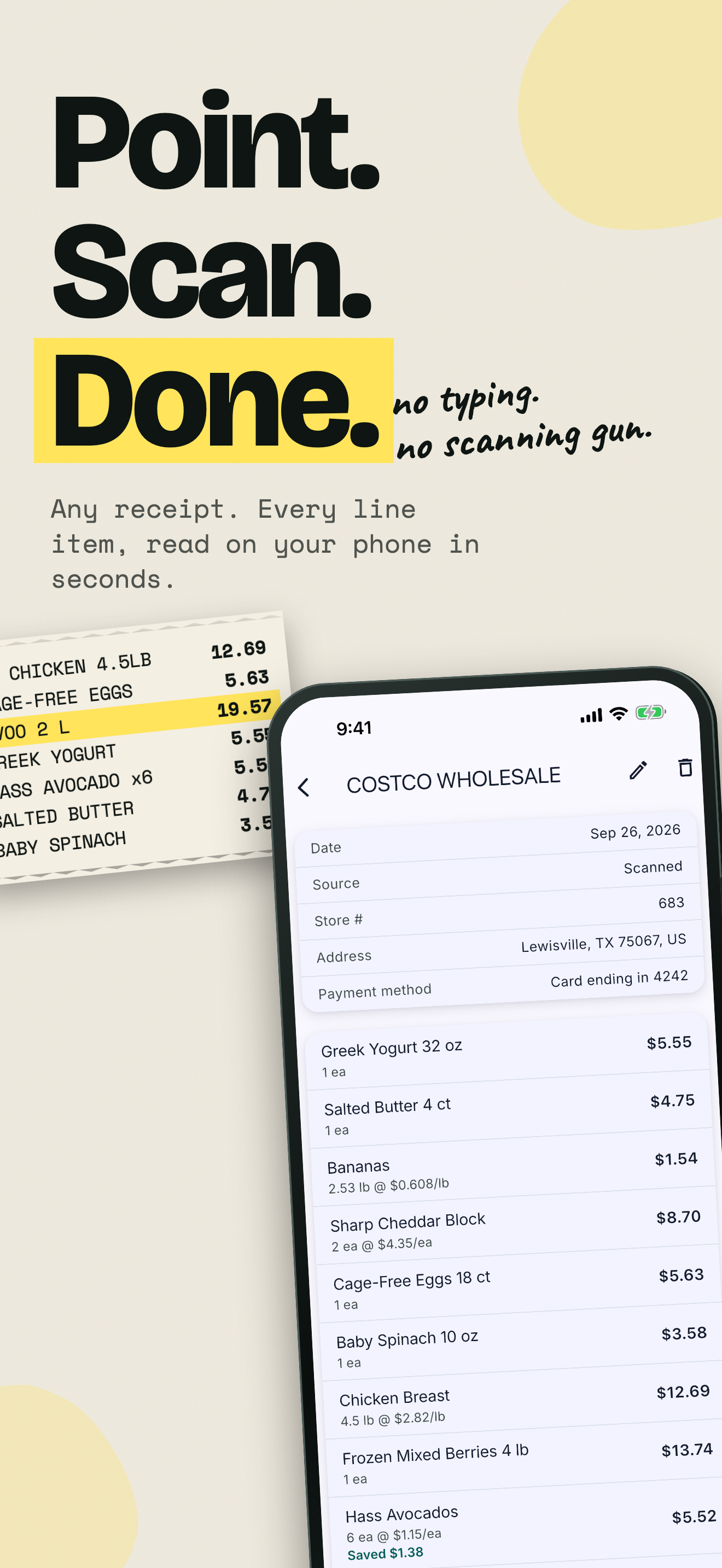
BasketPulse shows the extracted merchant, date, totals, and line items next to the receipt image. Low-confidence fields are flagged first. Fix anything that looks wrong, assign categories, and save — your original scan is always kept so you can double-check later.
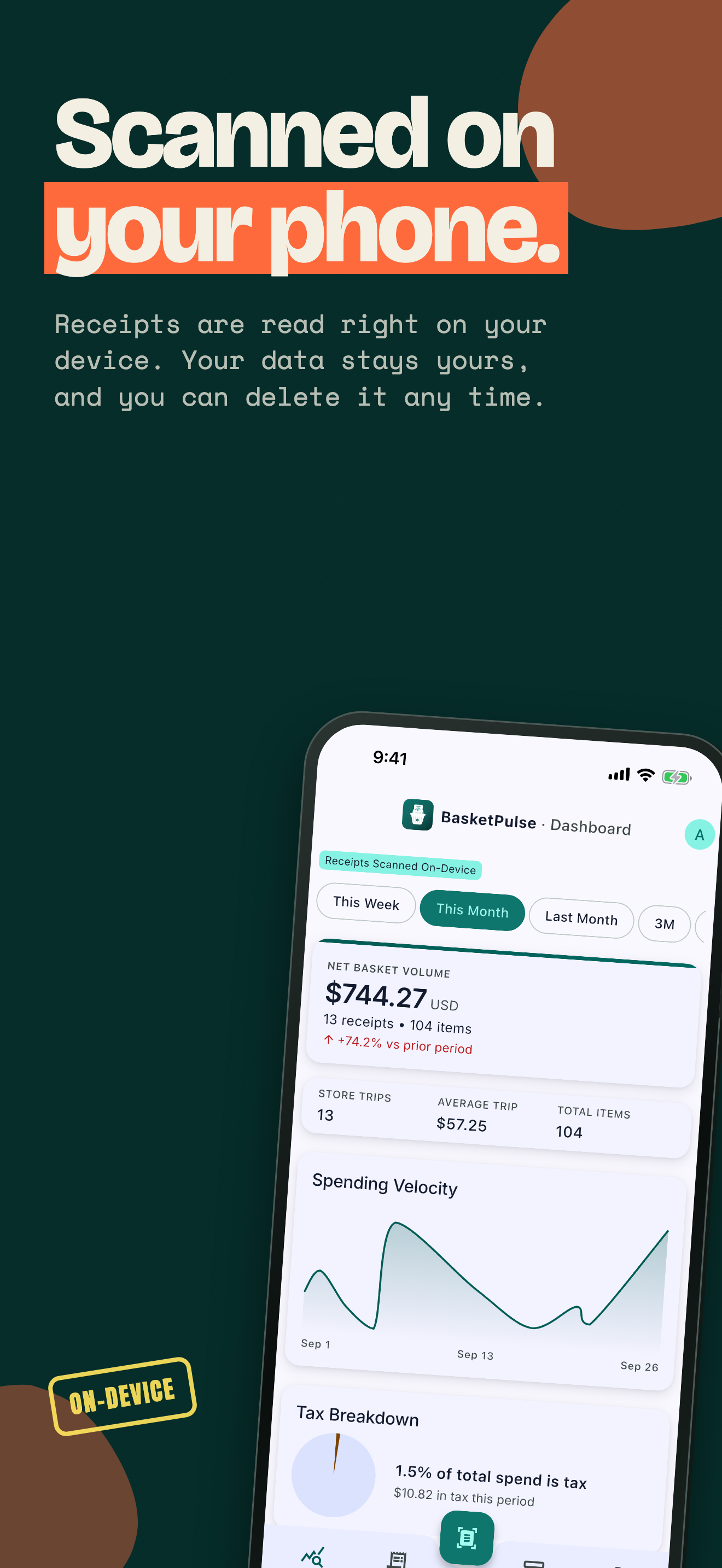
The dashboard opens on This Month by default. It shows your total spending, your Personal CPI (how much your specific basket has changed in price), category breakdowns, and top items and stores. Switch the date range at the top to see any period.
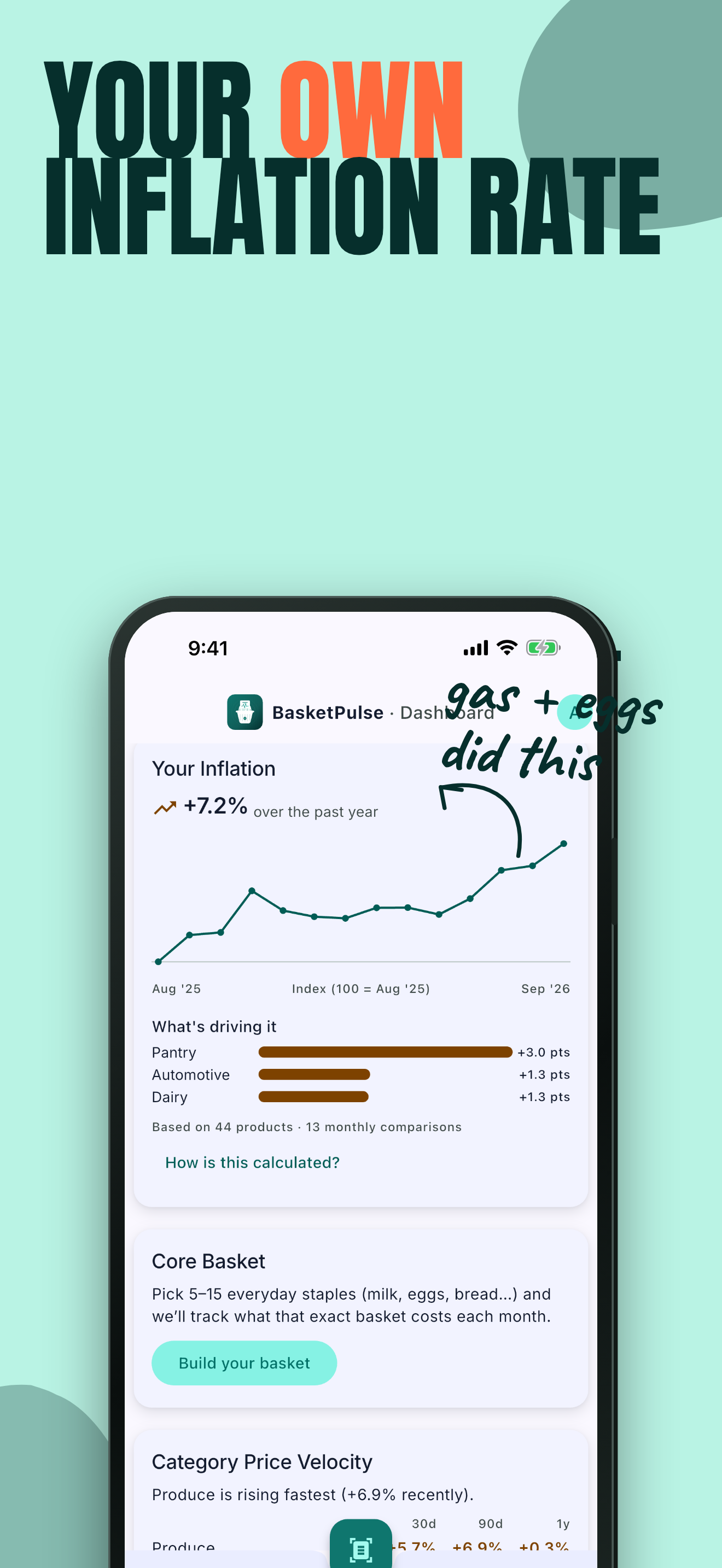
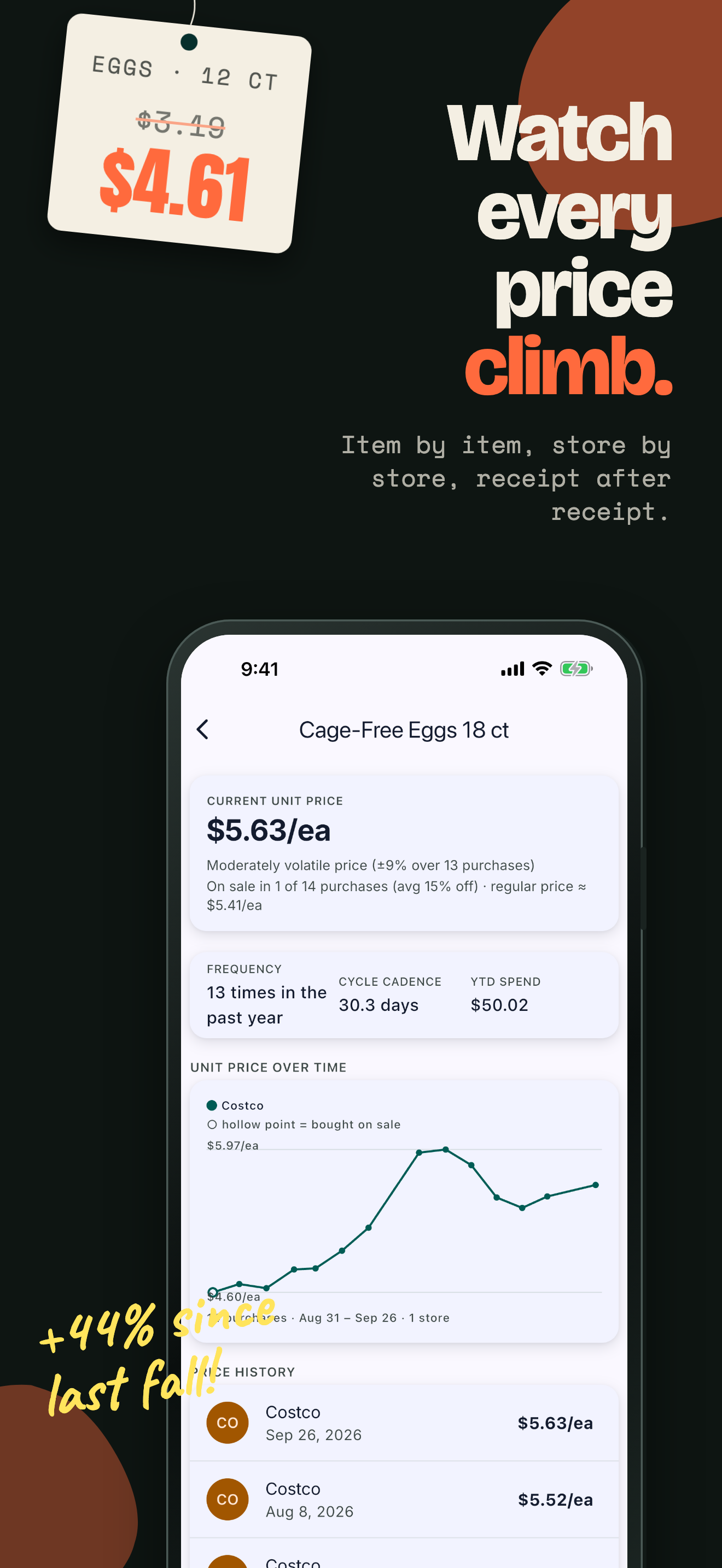
Every chart, category, store, and item is tappable. Tap a price trend to see the item's full purchase history across stores and dates; tap a category to see every receipt behind it. Filters carry through so you never lose context.
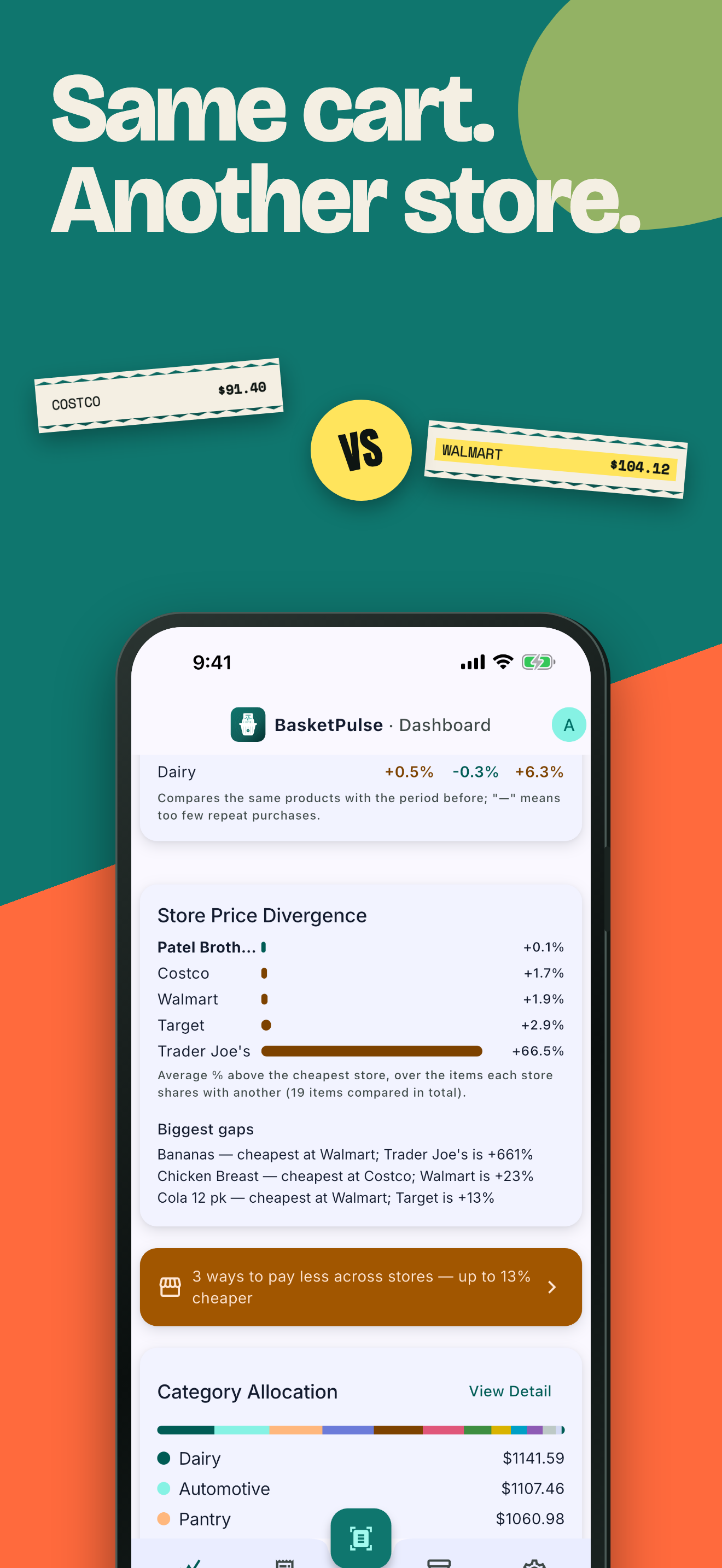
Use the store comparison view to see what the same basket of items costs across the stores you actually shop at, so you know where to go this week.
Open Settings in the app for two separate options: Delete all data clears every receipt, item, and category you've saved on this device, while keeping your account itself active so you can start fresh. Delete account removes your data and closes your account entirely. Both actions happen immediately and can't be undone — there's no recovery window, so export anything you want to keep first.
Since receipt scanning and storage happen on your device, deleting your data doesn't require waiting on a server — it takes effect the moment you confirm. Uninstalling the app has the same effect as Delete all data.
Still have questions?
See the FAQ